Web GUI
QuickLook includes a Flask-based web interface for interactive analysis with live progress streaming.
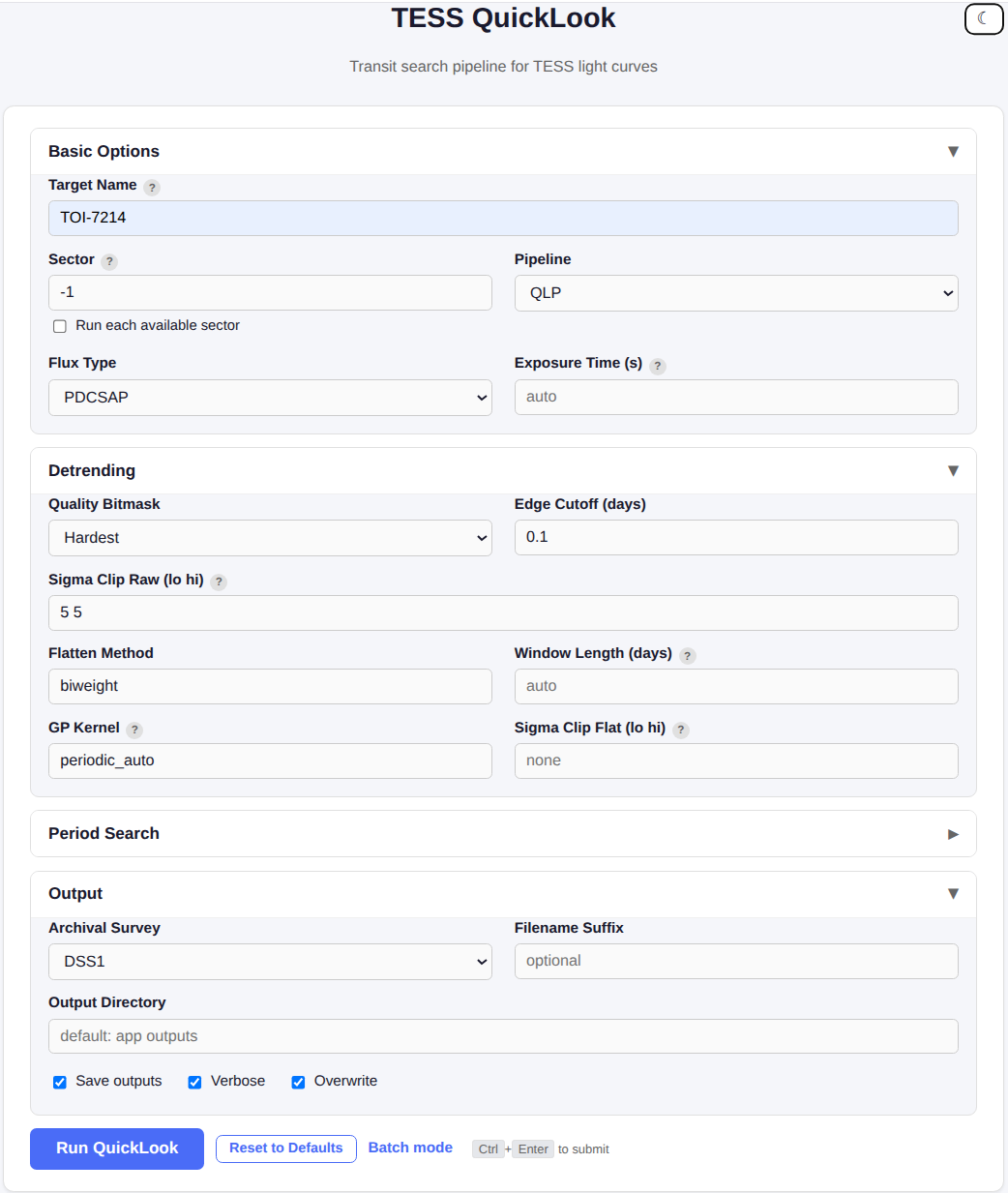
Starting the GUI
This starts a local server at http://127.0.0.1:5000.
Note
The GUI runs pipeline jobs serially (one at a time) because lightkurve, astropy, and matplotlib share global state that is not thread-safe. Jobs submitted while another is running are queued and executed in order.
Features
Single target analysis
- Enter a target name (TOI, TIC, or common name)
- Adjust pipeline parameters (sector, pipeline, flux type, etc.)
- Optionally toggle Show SIMBAD to overlay nearby non-stellar SIMBAD objects on the archival image (on by default in the GUI)
- Click Run QuickLook
- Watch live progress with step-by-step updates and ETA
Each-sector mode
Check Run each available sector to automatically query all available sectors for the target and submit one job per sector. Jobs are queued and processed sequentially.
Batch submission
Submit multiple targets at once. Each target runs with the same pipeline parameters. The job queue panel shows the status of all jobs.
Job queue
The right-side panel shows all submitted jobs with their status:
- Queued -- waiting for the worker to pick it up
- Running -- currently executing
- Done -- completed successfully
- Error -- failed (hover for error details)
- Cancelled -- cancelled by user
Click a queued or running job to watch its live log output. Jobs auto-advance -- when one finishes, the WebSocket automatically connects to the next queued job.
Results
Completed jobs display the output figure inline. Click to view full size. Results are saved in quicklook/app/static/outputs/.
Gallery
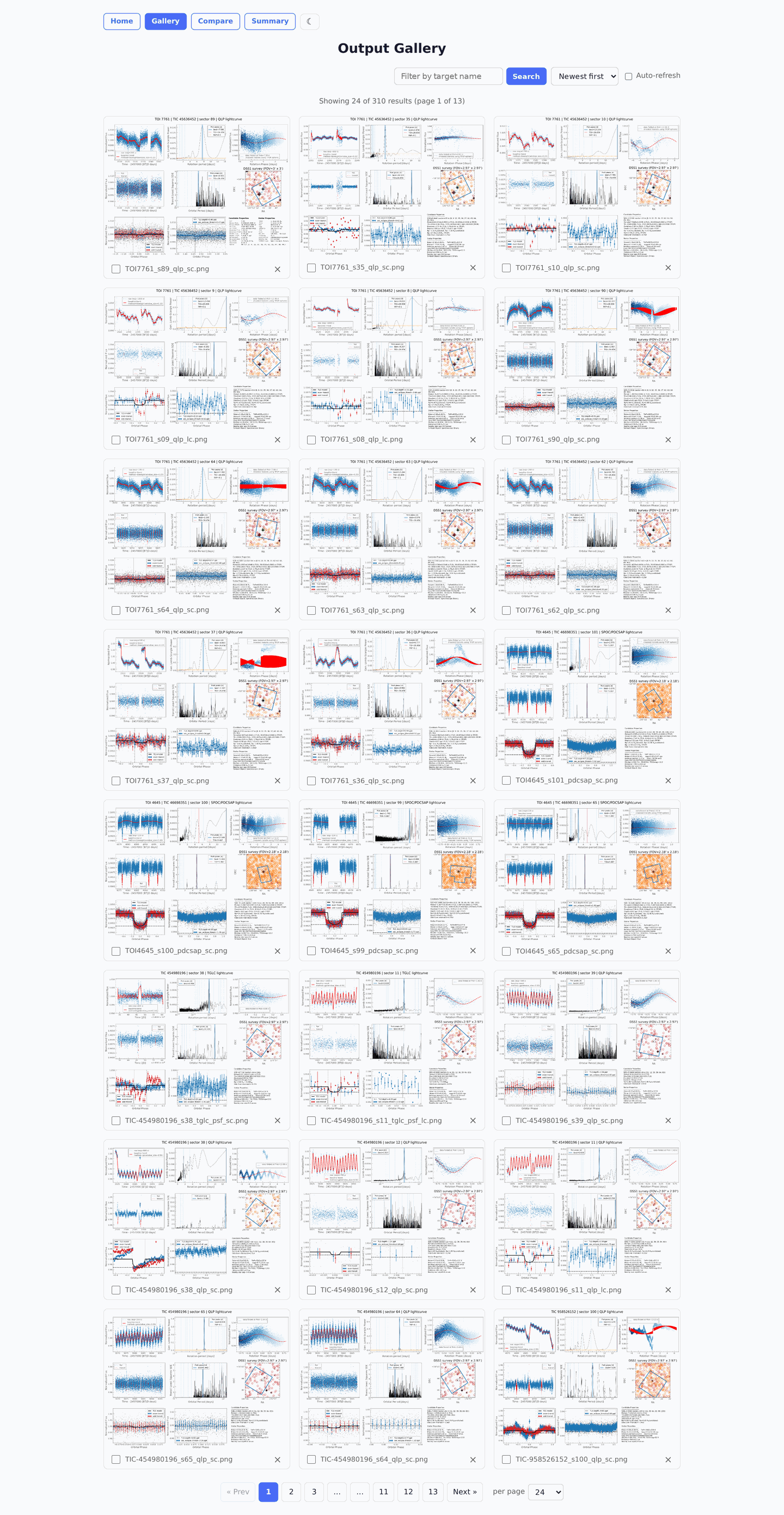
The /gallery page shows all previously generated output figures with search, sorting, and pagination. Click a thumbnail to open it in a zoomable modal -- pan by dragging, and use the left/right arrow keys to step between figures without closing the viewer.
Cancelling jobs
Click the Cancel button on a running or queued job to stop it. Queued jobs are skipped immediately when the worker reaches them.
Deleting outputs
Right-click a result or use the delete button to remove output files (PNG and H5).
Configuration
The GUI stores form state in the browser's localStorage, so your settings persist across page reloads. Click Reset to restore defaults.
Dark mode
Click the theme toggle in the header to switch between light and dark mode. The preference is saved in localStorage.